
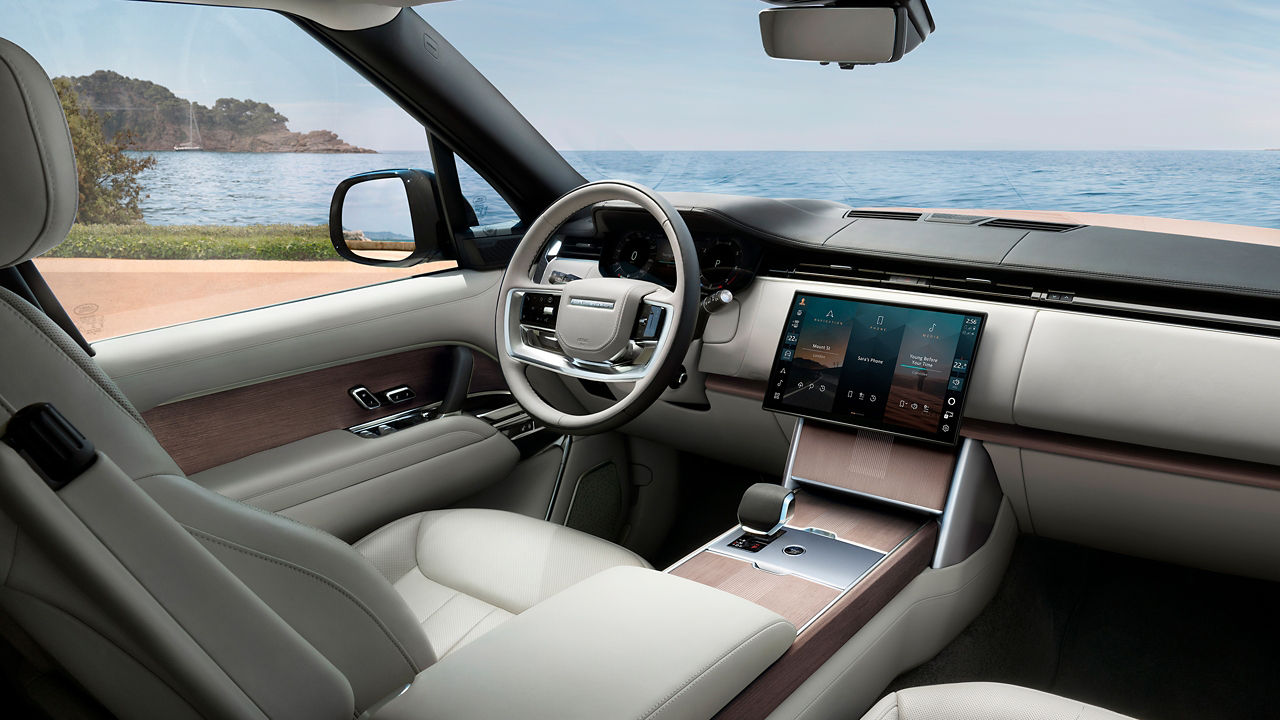
YOUR LAND ROVER VEHICLE CONNECTED SERVICES
Link your vehicle to your world
EUROPEAN MODEL SHOWN
Designed to make every journey more enjoyable, InControl16 is the technological heart of your Land Rover vehicle's cabin. Surround yourself with precise environment control, smart navigation, entertainment and security features.

- Defender (2020 - Present)
- Discovery (2021 - Present)
- Discovery (Pre 2020)
- Discovery Sport (2021 - 2022)
- Discovery Sport (2023 - Present)
- Discovery Sport (Pre 2020)
- Range Rover (2022 - Present)
- Range Rover (Pre 2021)
- Range Rover Evoque (2021 - 2022)
- Range Rover Evoque (2023 - Present)
- Range Rover Evoque (Pre 2020)
- Range Rover Sport (2023 - Present)
- Range Rover Sport (Pre 2022)
- Range Rover Velar (2021 - 2022)
- Range Rover Velar (2023 - Present)
- Range Rover Velar (Pre 2020)
YOUR INFOTAINMENT SYSTEM IS: TOUCH PRO
Please note, access to some of the connected services below will depend on your vehicle’s InControl subscriptions.
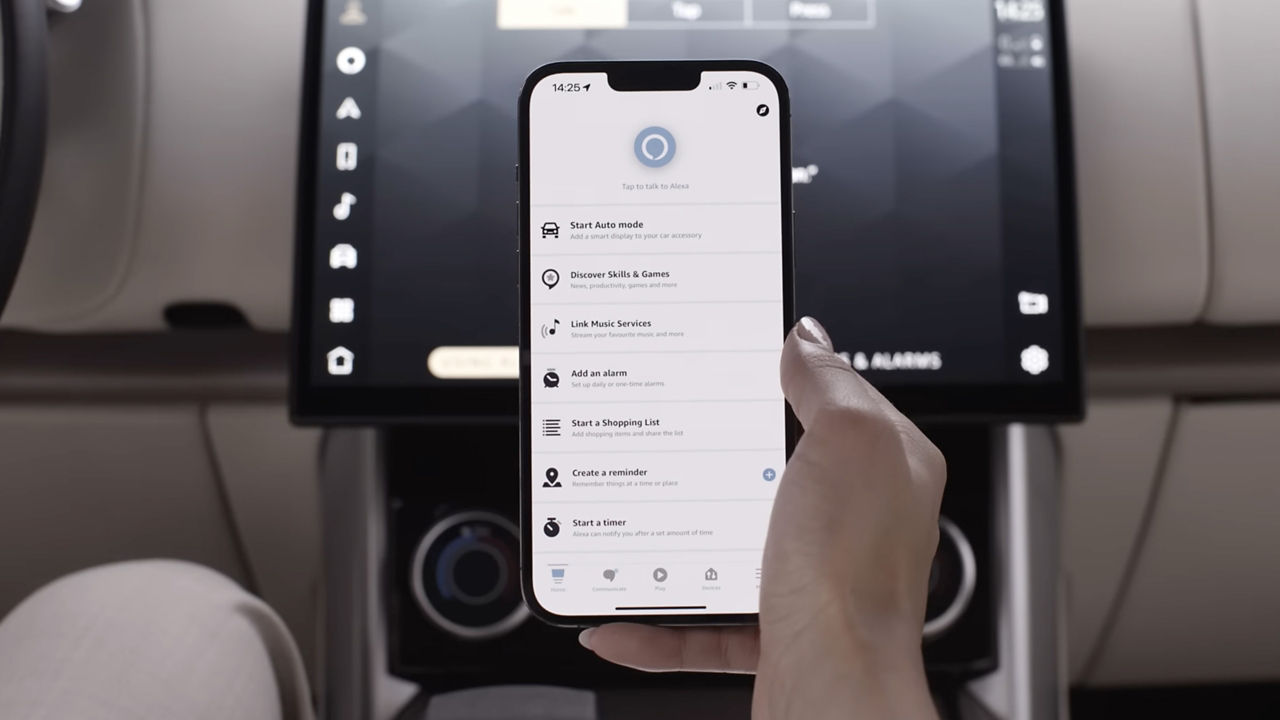
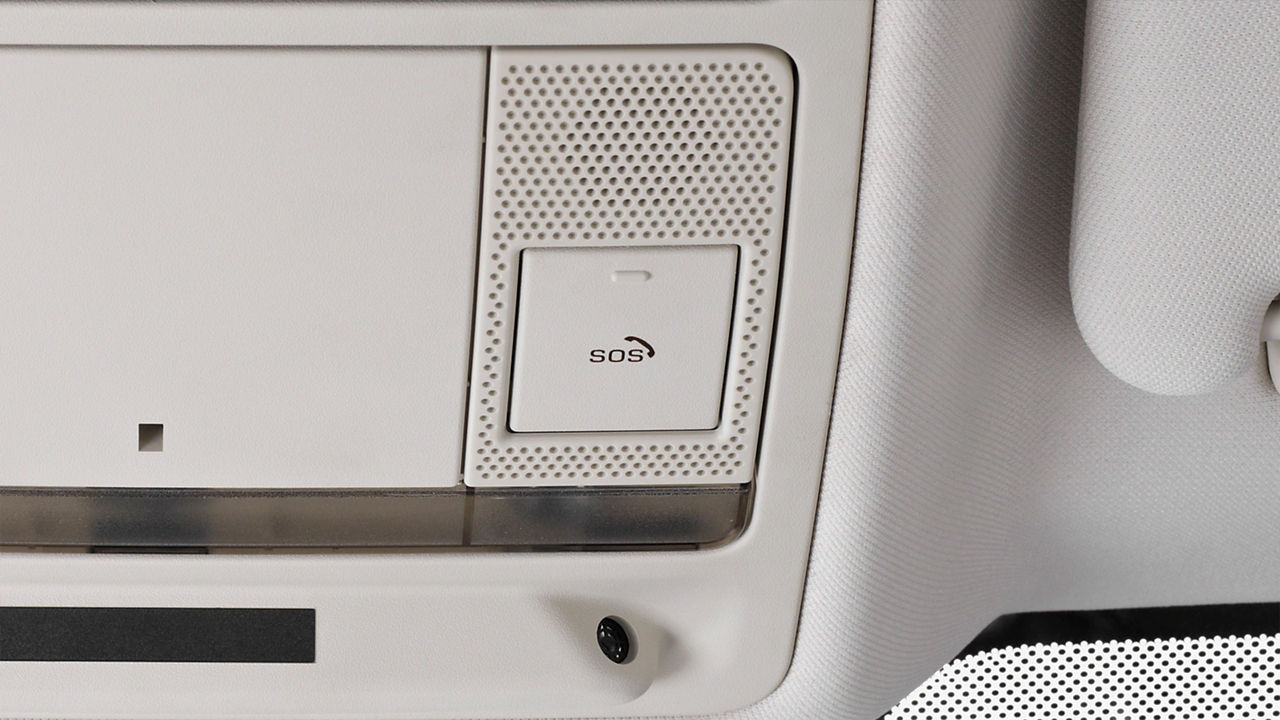
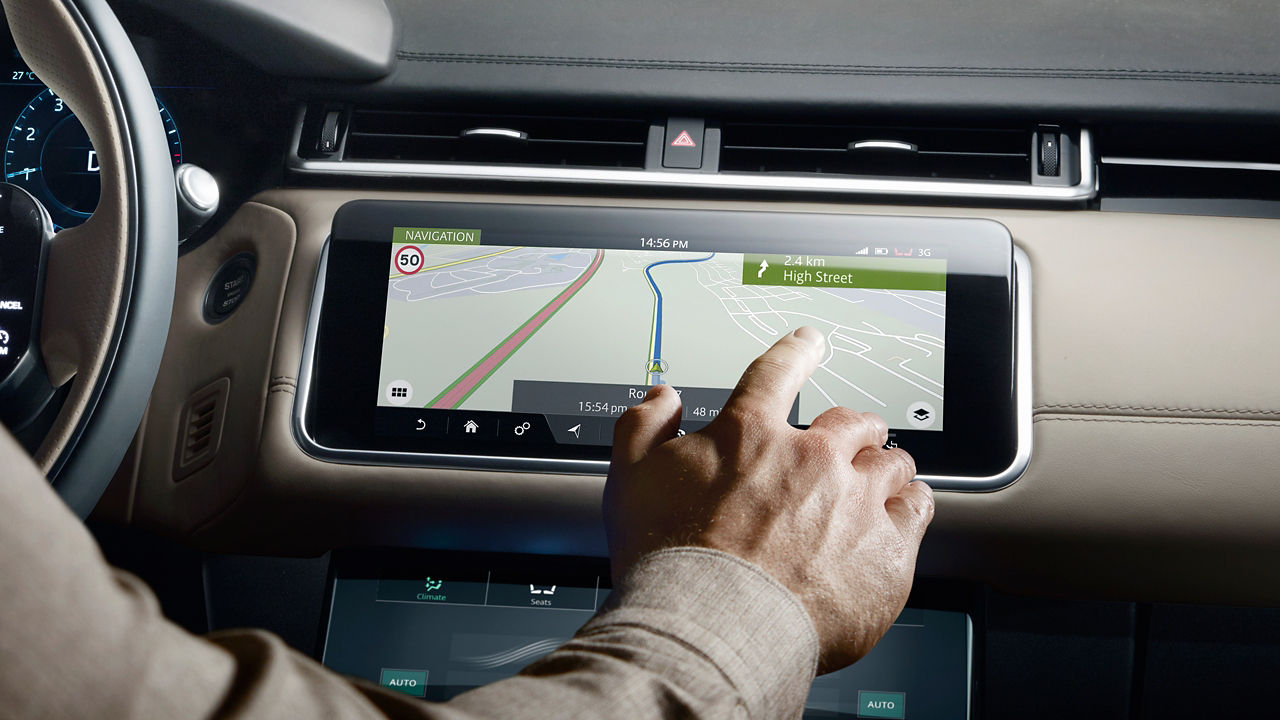
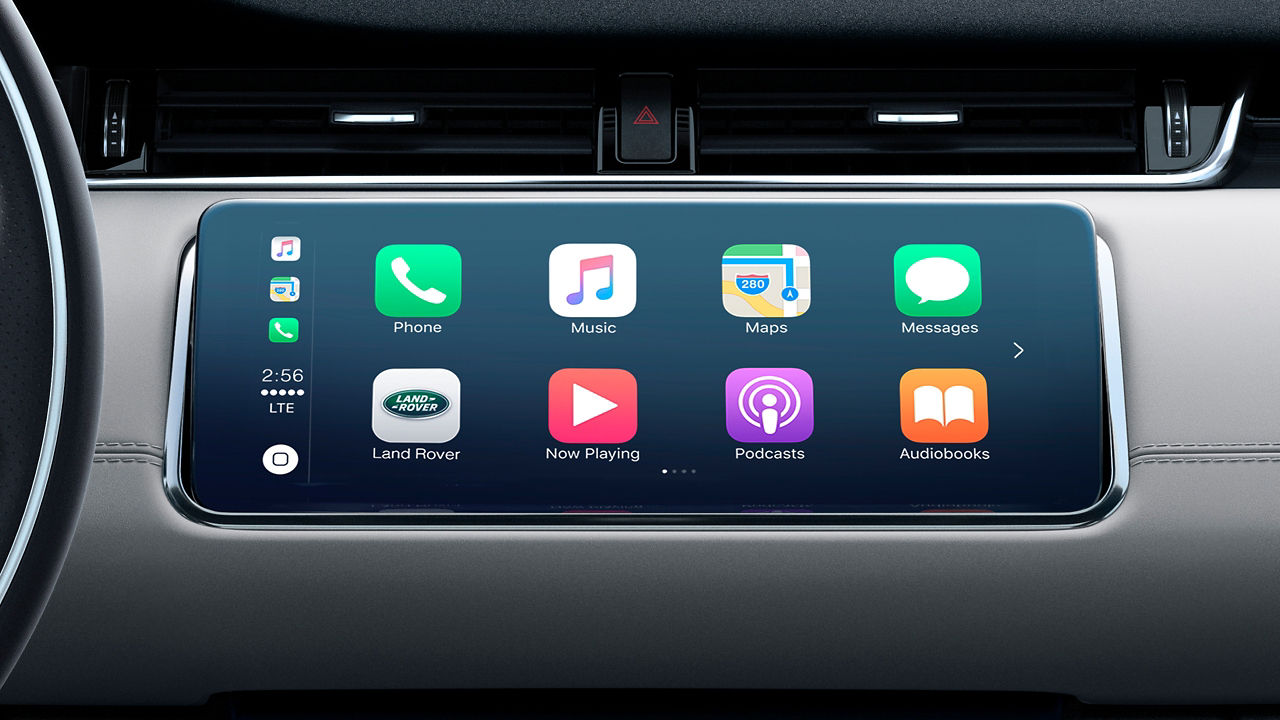
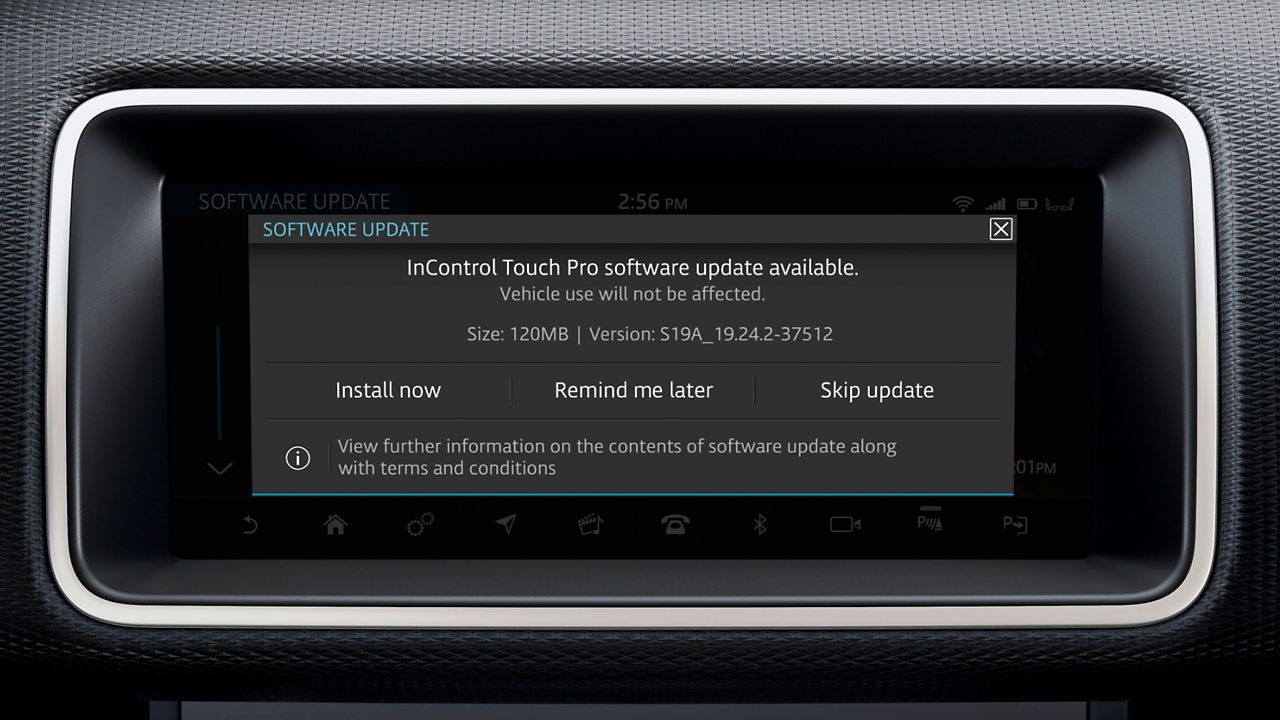
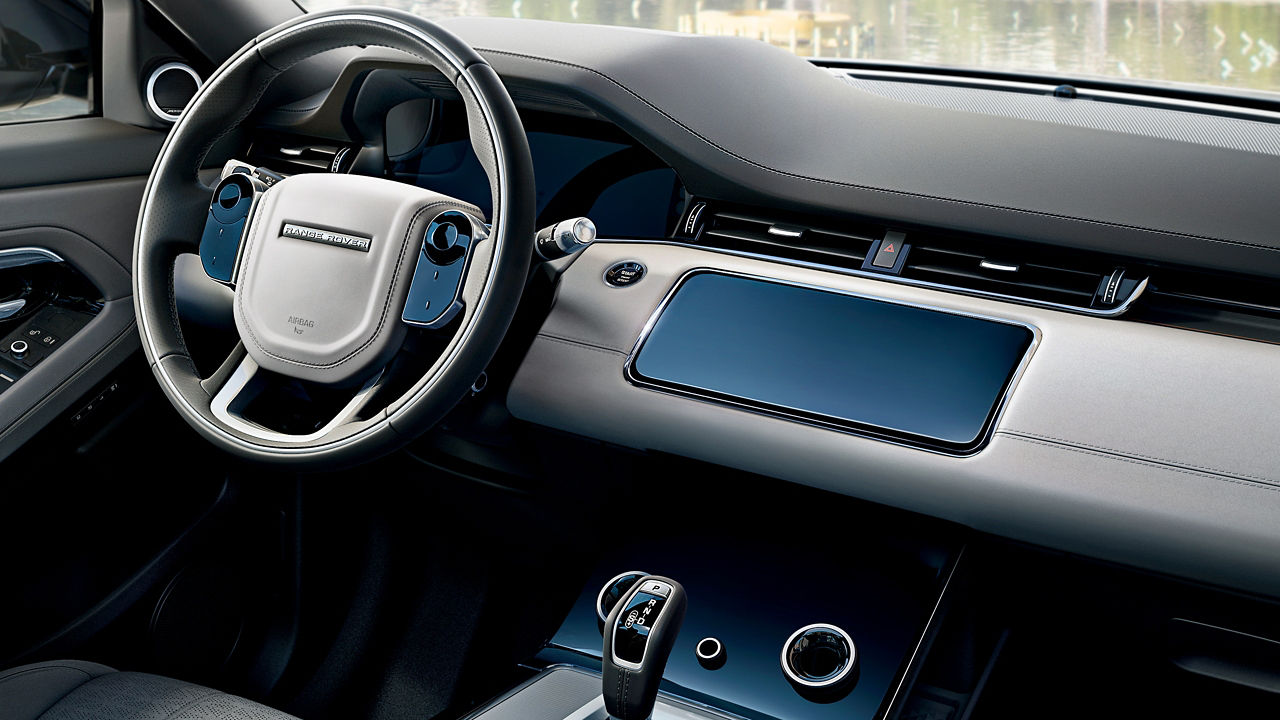
SET UP YOUR TOUCH PRO
To benefit from your Land Rover vehicle's connected services and subscriptions, you will first need to set up your infotainment system and create your InControl and InControl Navigation accounts.
European model shown
YOUR INFOTAINMENT SYSTEM IS: PIVI OR PIVI PRO
Please note, access to some of the connected services below will depend on your vehicle’s InControl subscriptions.
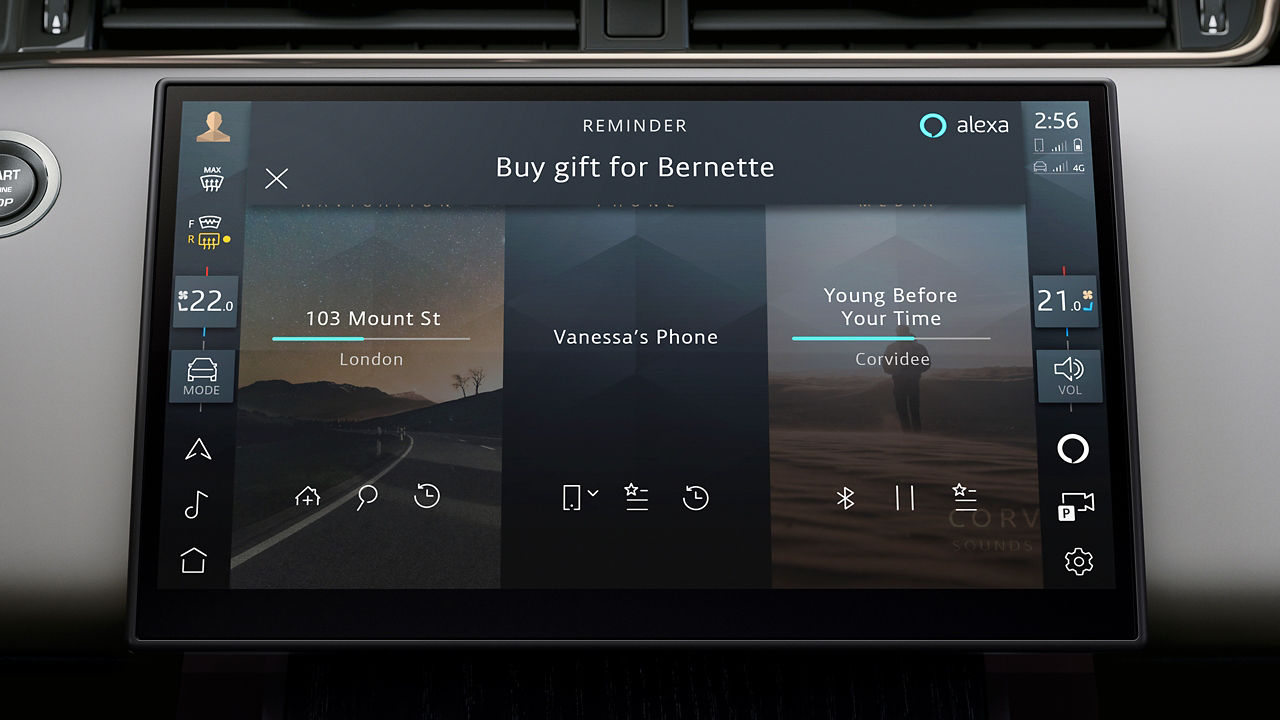
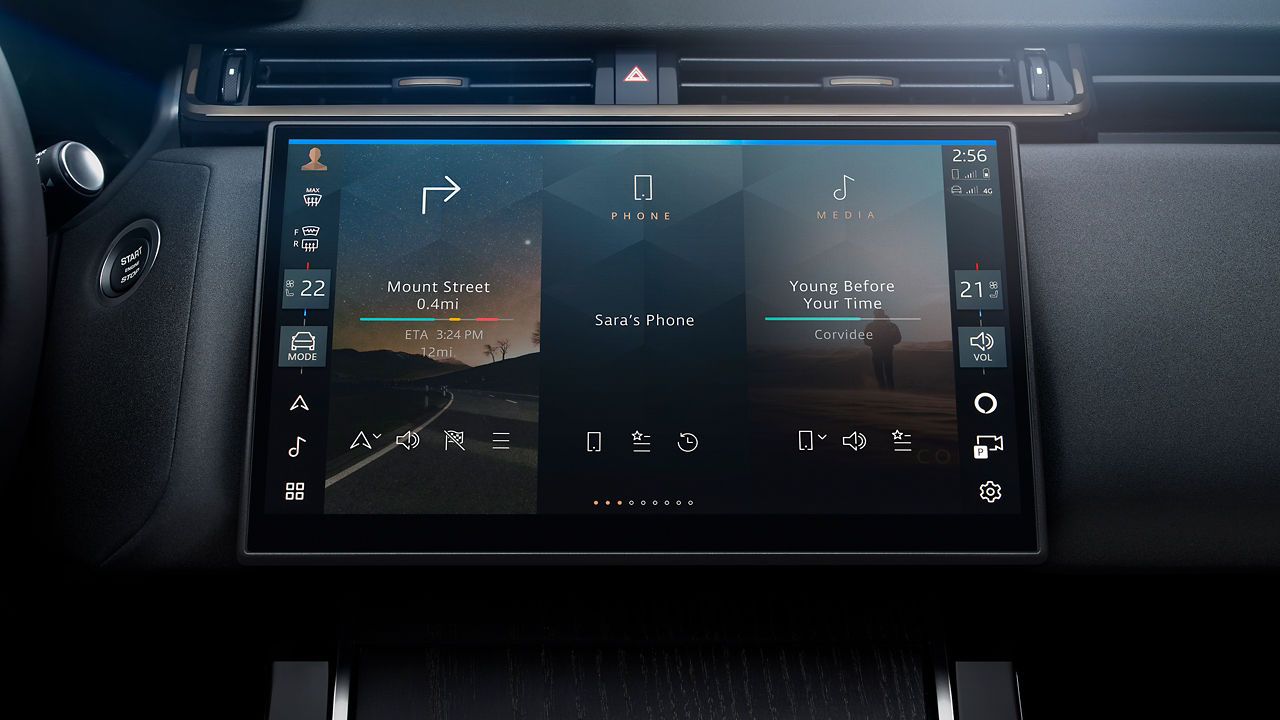
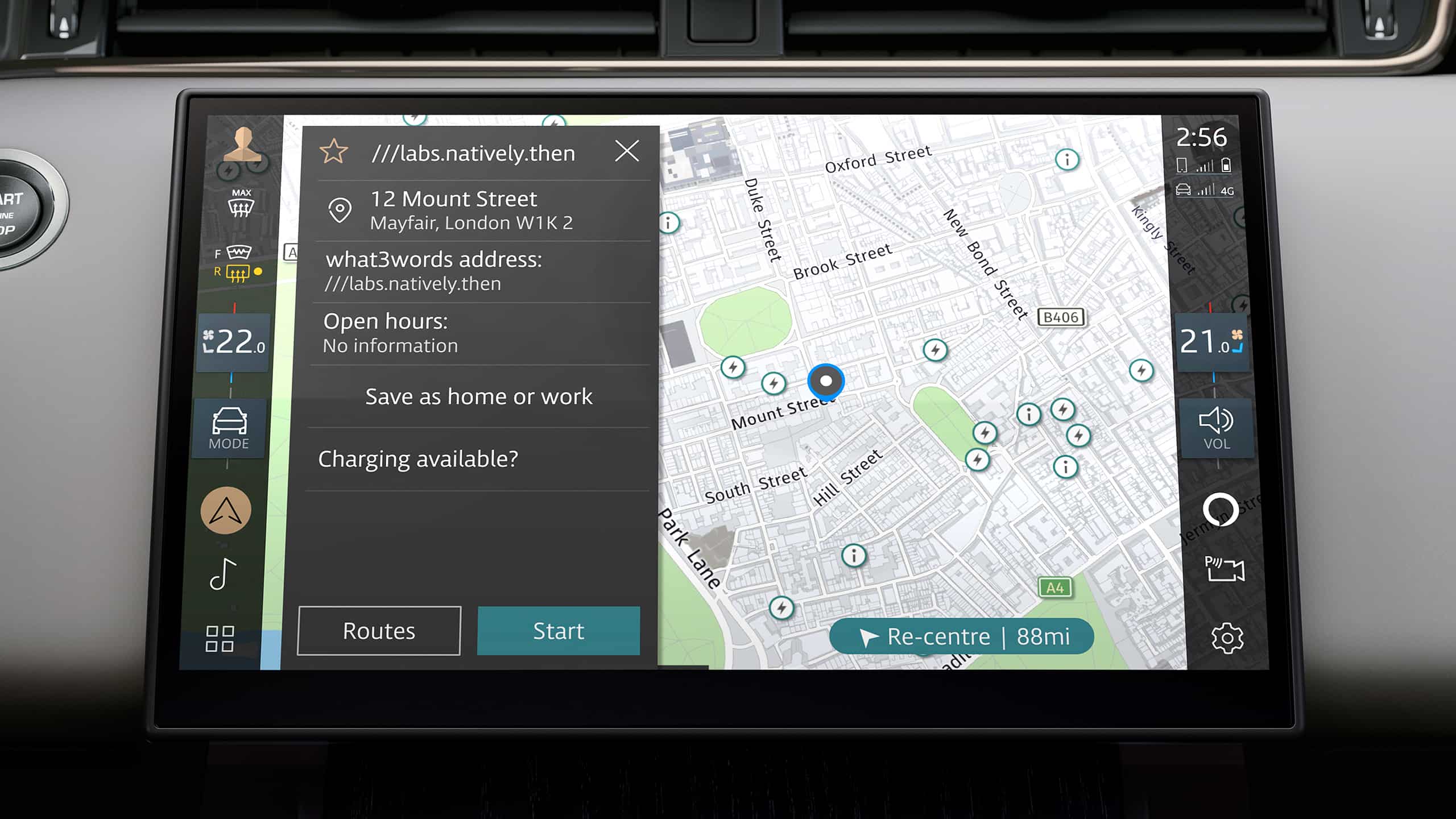
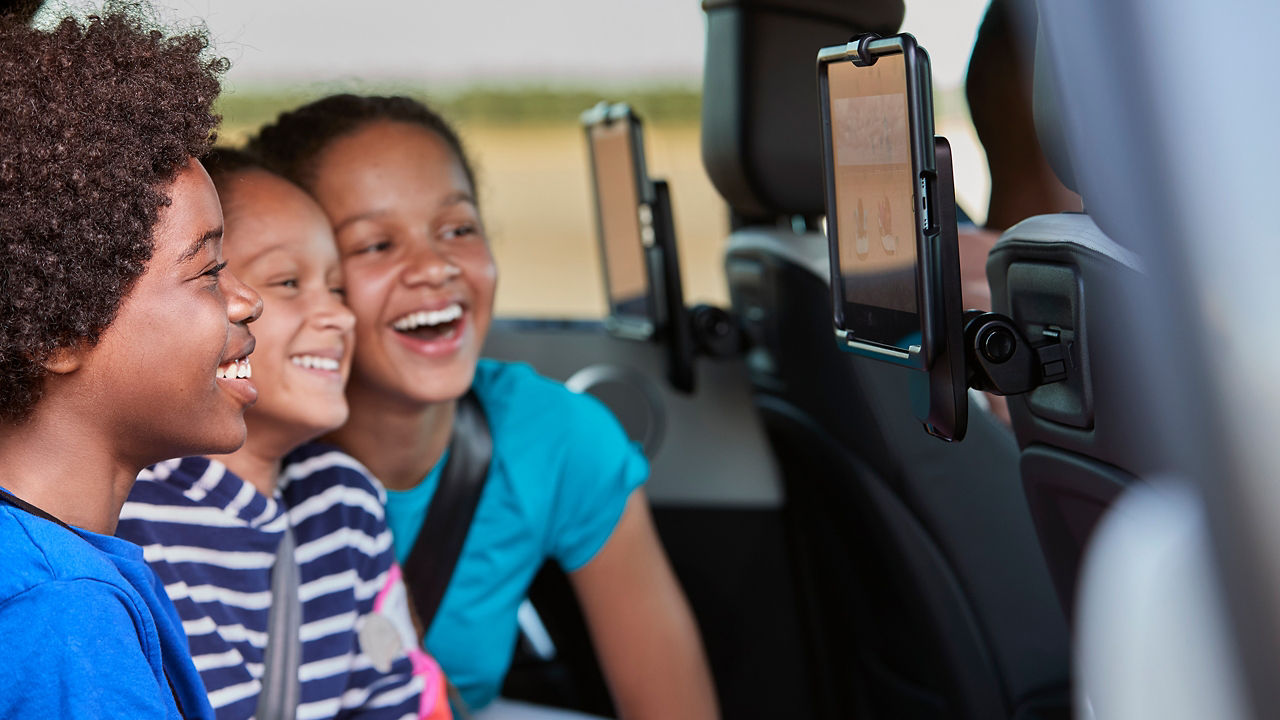
WIFI-ENABLED WITH DATA PLAN
Connect up to eight devices to the in-vehicle Wi-Fi hotspot18 and use the data connection to get online and stream, chat or work.
European model shown
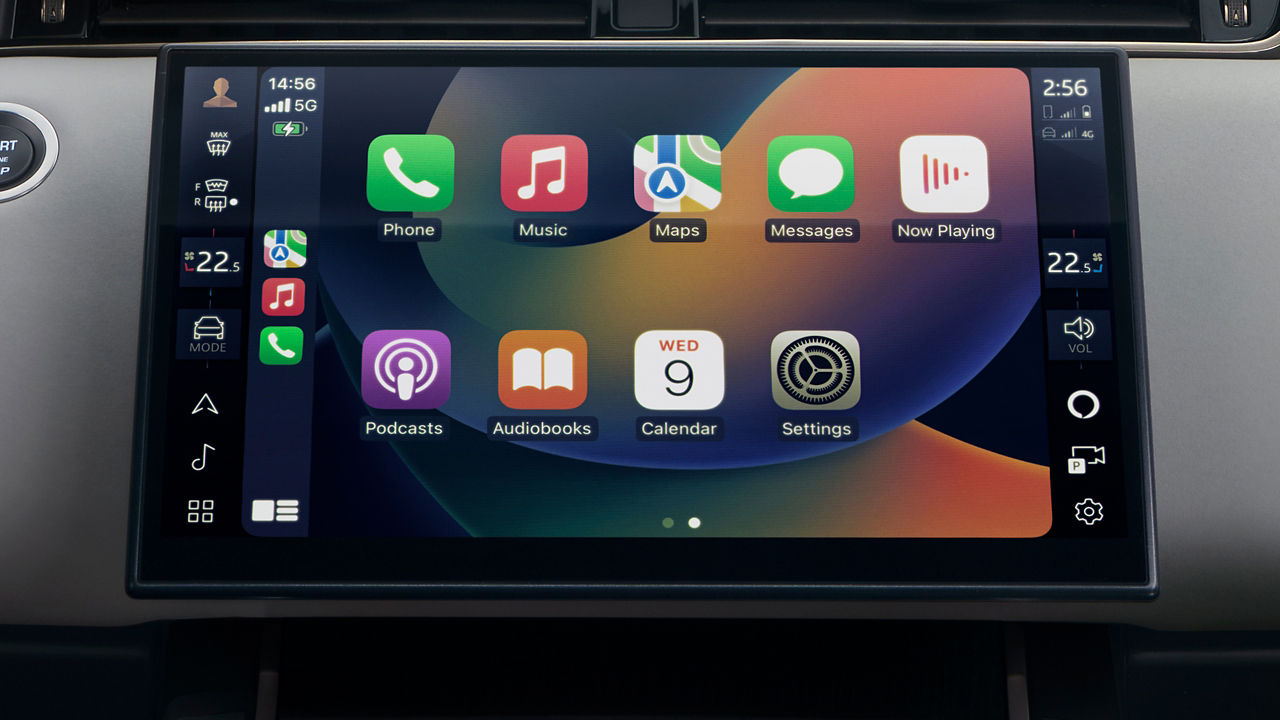
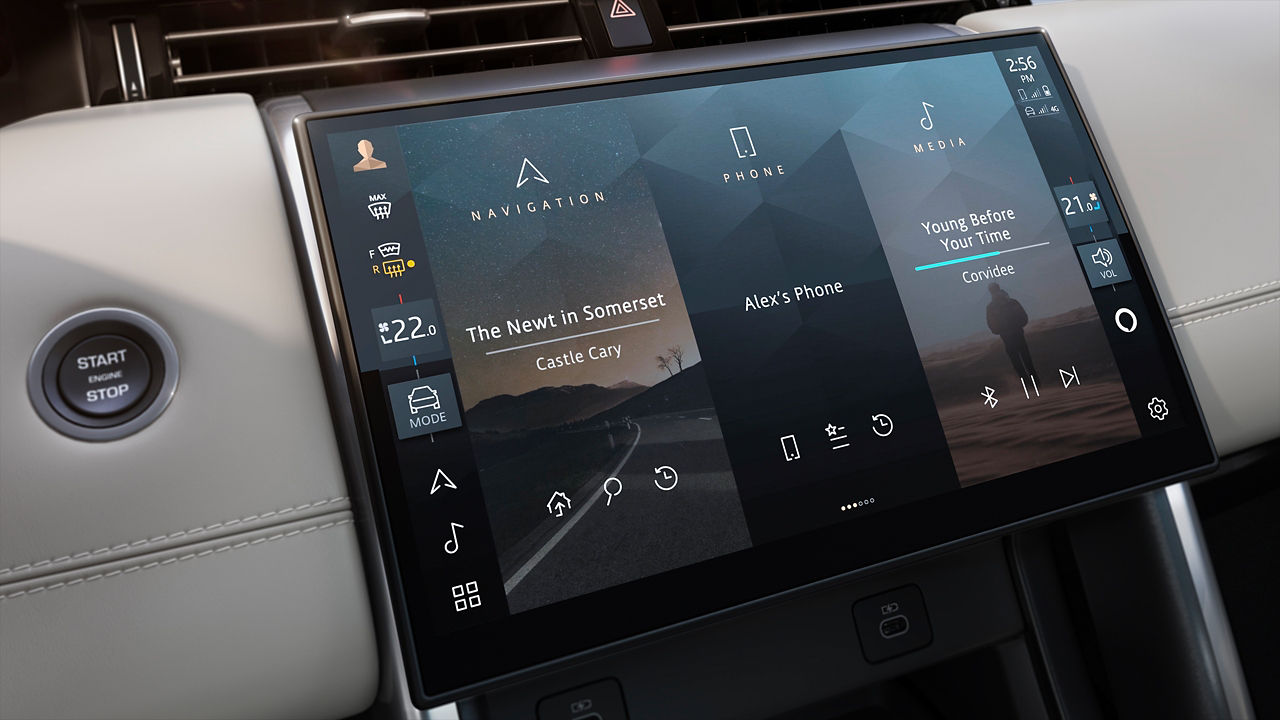
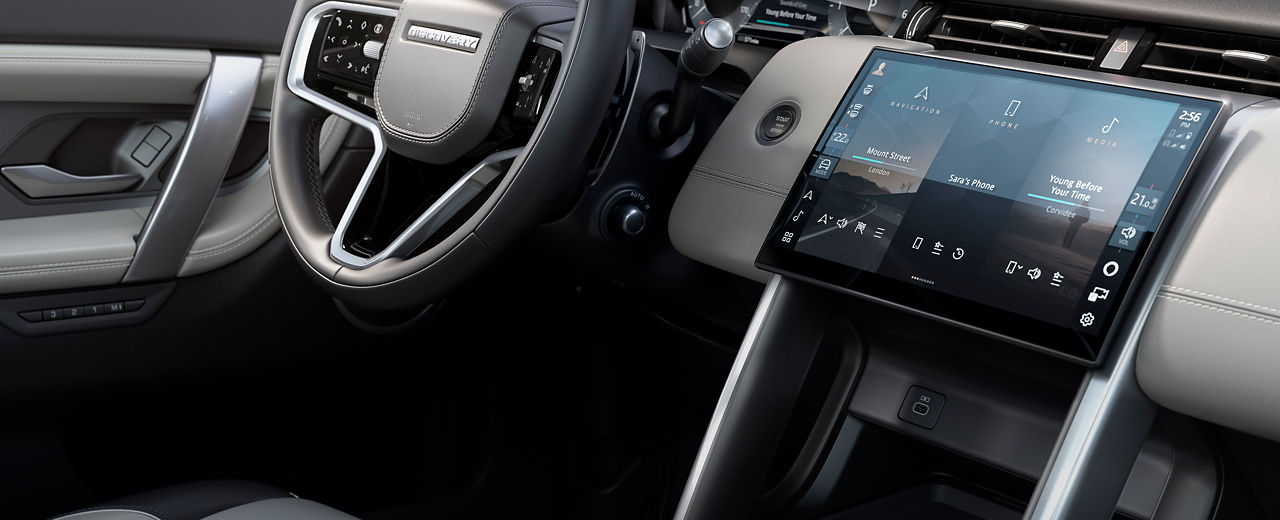
SET UP YOUR PIVI
To benefit from your Land Rover vehicle's connected services and subscriptions, you will first need to set up your infotainment system and create your InControl and InControl Navigation accounts.
European model shown
FREQUENTLY ASKED QUESTIONS
Remote App
-
What is the Land Rover Remote App?
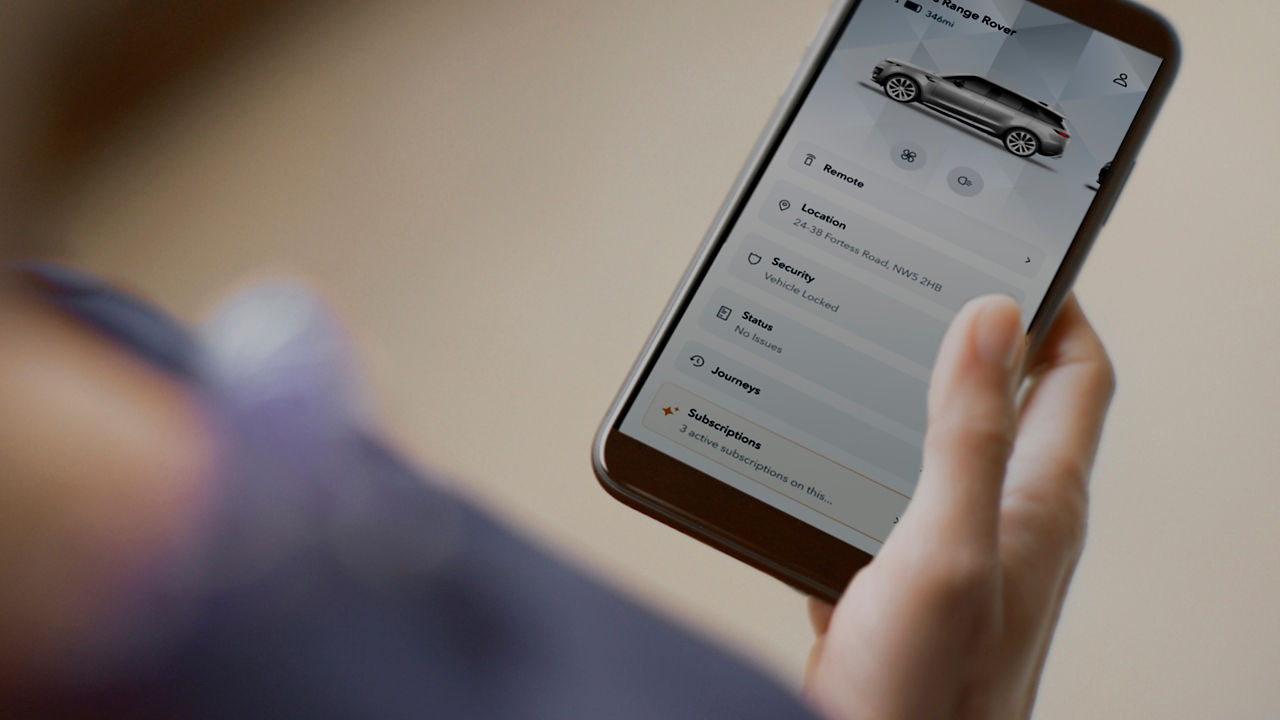
The Land Rover Remote App gives you visibility and control of your Land Rover vehicle's status, security and health straight from your smartphone. To learn more, visit Land Rover Remote App
-
How do I download the Land Rover Remote App?
Download the Land Rover InControl Remote App HERE
-
What is included in the Remote App?
The Remote App offers practical and intuitive features that help you get more from your Land Rover experience. It's equipped with remote controls to secure your vehicle, pre-condition the cabin climate and view vehicle maintenance alerts. You can also view your vehicle's Digital Handbook, contact Roadside Assistance, and Support directly from the App.
Note: Remote App's features, functionality and content will depend on your vehicle's model and services available in your area.
1. Available to download via the Apple App Store or Google Play for most Android and Apple iOS smartphones. Land Rover Remote App requires network connectivity, a compatible smartphone, an InControl account and a Remote subscription. To continue using the relevant features after its intial subscription period, you will need to renew your subscription and pay the applicable renewal charges.
2. InControl features, options and their availability remain market dependent. Check with your Retailer for local market availability and full terms. Certain features require an appropriate SIM with a suitable data contract which will require further subscription after the initial term advised by your Retailer. Mobile connectivity cannot be guaranteed in all location. Information and images displayed in relation to the InControl technology, including screens or sequences, are subject to software updates, version control, and other system/visual changes depending on options selected. Full terms and conditions can be found here. For Remote and InControl Cookies and Privacy policy, please click here.
-
How do I add a vehicle to the Remote App?
(1) Sign into your Remote App, or the InControl Website
(2) Click “Add Vehicle”
(3) Search for the last eight characters of your VIN
(4) Review vehicle details
(5) If satisfactory click “next”
(6) Accept the Terms & Conditions & InControl Privacy Policy
(7) Watch the instructional video
(8) Click “Get Started”
(9) You now have 60 minutes to perform the next action
(10) Hold the optimized assistance button for 10 seconds. During that period, the button will flash amber rapidly. The button should only be released once the amber flashing slows down. The LED will go white to confirm the vehicle is in fully provisioned state (the page will refresh in the remote app and the client will receive confirmation that their vehicle is in the process of being added to their InControl account)
(11) You can edit vehicle settings including vehicle nickname, registration number and InControl PIN.
(12) You will then receive a confirmation setup pending/complete. Activation usually takes a matter of minutes; it can take up to three days to conclude.
(13) Once complete you will receive notification via email.
For a video tutorial on how to add your vehicle to your InControl Account and Remote App Setup, watch here
-
Is there a trial period for the Remote App?
For new vehicles, remote service trial is for 48 months once the vehicle is attached to the InControl account.
-
How do I renew my subscription?
Once the vehicle is attached to the InControl account the trial period will begin for new vehicles. Emails will be sent 60, 30, and 7 days before the subscription expires.
-
How do I remove my vehicle within the Remote App?
(1) Sign into the remote app using account credentials
(2) Click on the account icon on the upper right corner of the screen
(3) Click on "My Vehicles"
(4) Clicks on "X" to remove the vehicle
(5) Enter InControl account password associated with the account
(6) You will receive confirmation of vehicle removal from account on screen and via email
InControl Account
-
How do I create an InControl Account?
Visit incontrol.landrover.com and follow the below steps:
(1) Select Market of Use and language from Market Selector Page
(2) Continue to InControl Website and select 'Create Account' option
(3) Provide the email address that you wish to create an account with
(4) An email will be sent to verify your email address with a OneTime Password code. Enter the code on the InControl Website
(5) Enter First Name, Last Name, confirm market choice and enter password information
(6) Enter contact details, preferences and accept Terms and Conditions, Privacy Policy, Vehicle Health Notifications, and Marketing Consent. Click 'Activate' button
(7) Add Vehicle is visible as an option on the InControl Website homepage. This signifies your Account has been fully created.
-
How do I reset my password?
Please sign in from the InControl Homepage and enter your email address.
(1) Select "forgot password" from the password page
(2) A one-time password via email will be sent for verification
Note: Reset password process can also be initiated once signed into the InControl Website via Security Details section of the My Account menu.
-
How do I change my Email Address?
Sign into the InControl Website, navigate to Email Address menu option within My Account. Select "Change Email"
(1) You will receive a one-time passcode via email to current email address, and verify on screen
(2) Enter in new desired email address
(3) Email address change will be confirmed via email
-
How do I remove my InControl Account?
(1) Sign into the InControl Website, navigate to Remote Account option within My Account.
(2) Select 'Remove Account'
(3) Enter your email address
(4) Enter your password
(5) You will be signed out of the InControl website and Remote App. Confirmation of removal will be shown on screen.
Note: This will remove your InControl Account from your Land Rover Account. To fully delete your Land Rover Account, you will need to sign into your Land Rover Account
-
How do I remove my vehicle?
To remove your vehicle via the InControl Website, please follow the below steps:
(1) Sign into InControl Website using account credentials
(2) Select 'vehicle settings' on the right-hand side of the homepage
(3) Select 'remove vehicle' menu icon and select 'remove vehicle'
(4) You must enter your email address, then password associated with your InControl account to authenticate the removal request
(5) You will receive an email confirmation that your vehicle has been removed from your account on the screen and via email
-
How many vehicles can be added to one InControl Account?
Up to eight (8) vehicles can be added to one InControl Account.
1-32DISCLAIMERS